


Campus VPN Requirements
If remotely connecting from off campus or from an un-managed PC, please first connect to the campus Ivanti Campus VPN.
Available Servers
| Group | Server |
|---|---|
| CWS | yolo.cws.ucdavis.edu |
| DEEP | deep.env.ucdavis.edu |
Using Remote Desktop Connection for Windows
- Navigate to the “Remote Desktop Connection” application by searching for it in the left-hand search bar. Click on the application
- You should see a prompt similar to the following:
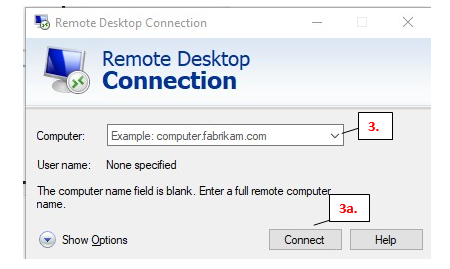
- In the “Computer:” text box, type the hostname or server
3a. The following prompt should appear once you hit “Connect”:
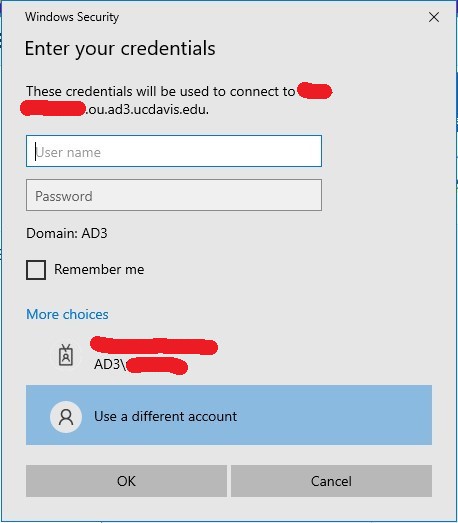
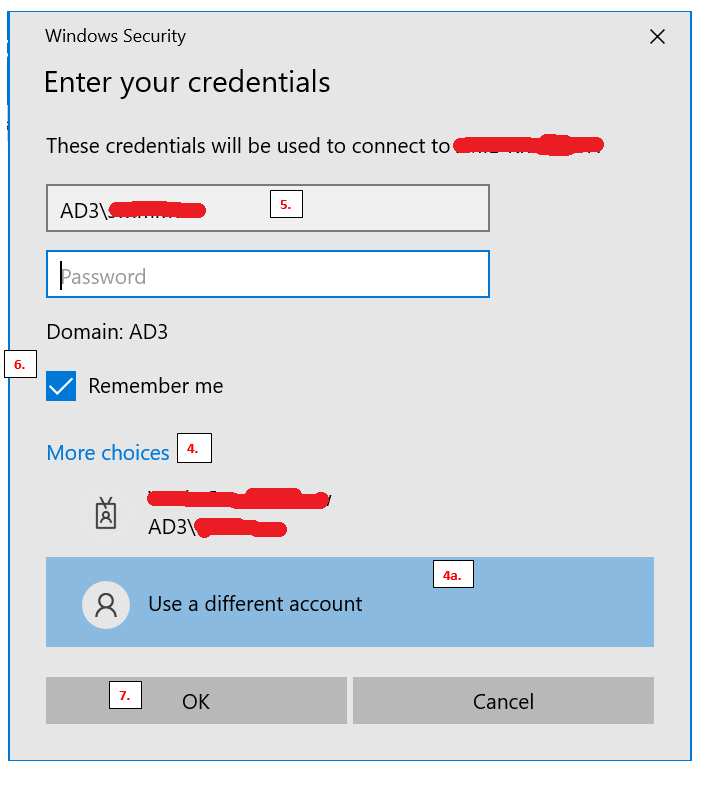
- Select “More choices”
- “Use a different account” as indicated below.
- Input your UC Davis Kerberos Username and Password as indicated below.
-
- Make sure that you specify the domain for username. This is done by typing the following: AD3\
- Input your password
-
- Select the “Remember Me” checkbox as indicated below.
- Select “Ok”
- It should allow you to sign-in and connect to the PC of your choice.
- When you are prompted to use DUO, do so and approve it from your mobile phone.
At this point you should be successfully remotely connected.
Using Microsoft Remote Desktop for Macs
Download Windows App from the Apple Store. Then select the appropriate server to connect.